

How to Calculate Business Days — Step-by-Step Guide
Knowing how to calculate business days manually is a valuable skill for anyone who works with contracts, invoices, project timelines, or legal deadlines. While a business day calculator gives you the answer in seconds, understanding the manual method helps you verify results, catch errors, and confidently handle any situation where a tool is not immediately available.
This guide walks you through the complete manual method for calculating business days between two dates, explains how to add business days to find a future date, and shows you exactly where the most common counting errors occur and how to avoid them.
What Does It Mean to Calculate Business Days?
Calculating business days means counting only the working days between two dates, excluding Saturday and Sunday, and any public holidays that apply to your situation. The result tells you how many days of actual work or business activity separate two dates, which is the relevant measure for most professional, legal, and financial deadlines.
The key distinction from calculating calendar days is that every Saturday and Sunday in the range is excluded from the count. For longer periods, this removal of weekend days significantly reduces the total from what a simple calendar day count would show.
Business day calculation is relevant in two main scenarios. The first is counting how many business days fall between a known start and end date. The second is finding the specific date that falls a certain number of business days from a starting point. Both scenarios use similar arithmetic but in different directions.
How to Calculate Business Days Between Two Dates — The Manual Method
Here is the complete step-by-step method for counting business days between any two dates.
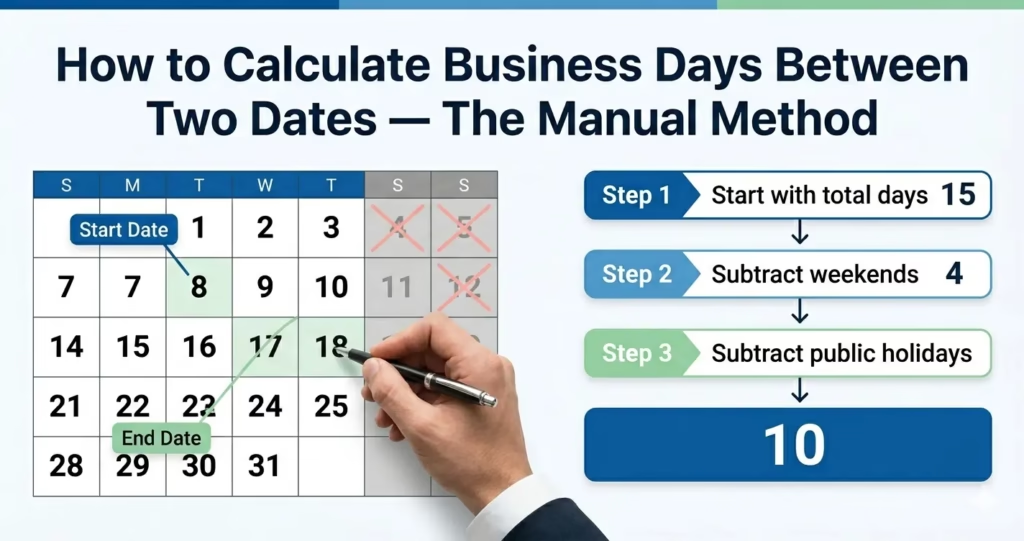
Step One: Count the Total Calendar Days
Start by counting every day from the start date to the end date. Whether you include the start date, the end date, or both depends on the specific context of your calculation. Most deadline calculations count from the day after the trigger date and up to and including the deadline date.
For a quick count, note the month and day of each date and count forward through each calendar month, adding the correct number of days for each month you cross.
For example, from March 2, 2026, to March 20, 2026, the total calendar days are 19, counting from March 2 through March 20 inclusive.
Step Two: Count the Weekend Days in the Range
Next, identify every Saturday and Sunday that falls within your date range. For every complete week within the range, there are exactly 2 weekend days. For partial weeks at the start and end of the range, check individually whether a Saturday or Sunday falls within the period.
A quick method for estimating weekend days is to divide the total calendar days by 7 to find the number of complete weeks, then multiply by 2 to get the weekend days from those complete weeks. Add any extra weekend days from partial weeks at the start or end of the range.
For the March 2 to March 20 example: the full weeks within the range include the weekends of March 7 to 8 and March 14 to 15. That gives 4 weekend days within a 19-day range.
Step Three: Subtract Weekend Days From Total Calendar Days
Subtract the weekend day count from the total calendar days. This gives you the preliminary business day count before any holiday adjustment.
In the example: 19 total calendar days minus 4 weekend days equals 15 business days.
Step Four: Subtract Any Public Holidays That Fall on Weekdays
If public holidays apply to your calculation, count the number of holidays that fall on weekdays within your date range. Subtract this number from the preliminary business day count.
Holidays that fall on Saturdays or Sundays are not subtracted separately because those days are already excluded from the business day count. Only holidays that fall on Monday through Friday reduce the business day total further.
If no holidays apply, skip this step. The result from Step Three is your final business day count.
Step Five: Confirm Your Result
Double-check your result by tracing through the date range day by day for shorter periods. For longer periods, verify the weekend count using the formula above and confirm that any holidays are correctly identified as falling on weekdays.
Business Day Calculation Formula
The complete formula for counting business days is:
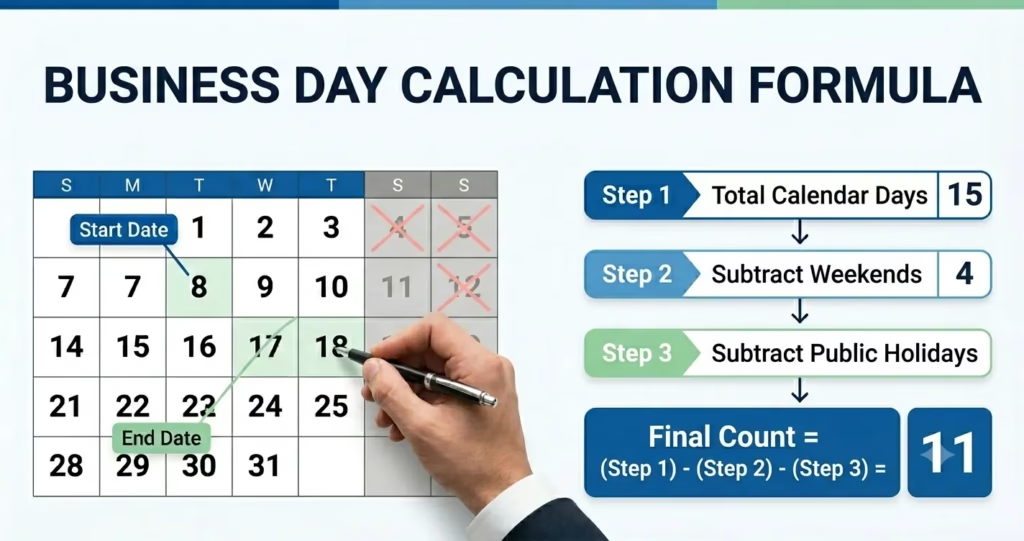
Business Days equals Total Calendar Days minus Weekend Days minus Weekday Holidays.
Where Total Calendar Days is the count of every day in the range, Weekend Days is the count of every Saturday and Sunday in the range, and Weekday Holidays is the count of public holidays that fall on Monday through Friday within the range.
This formula is the same one used by every business day calculator and by Excel’s NETWORKDAYS function. Understanding it helps you verify any result and identify errors in manual counts.
How to Calculate Business Days — Detailed Examples
Here are three complete examples showing the manual calculation method for different date ranges.
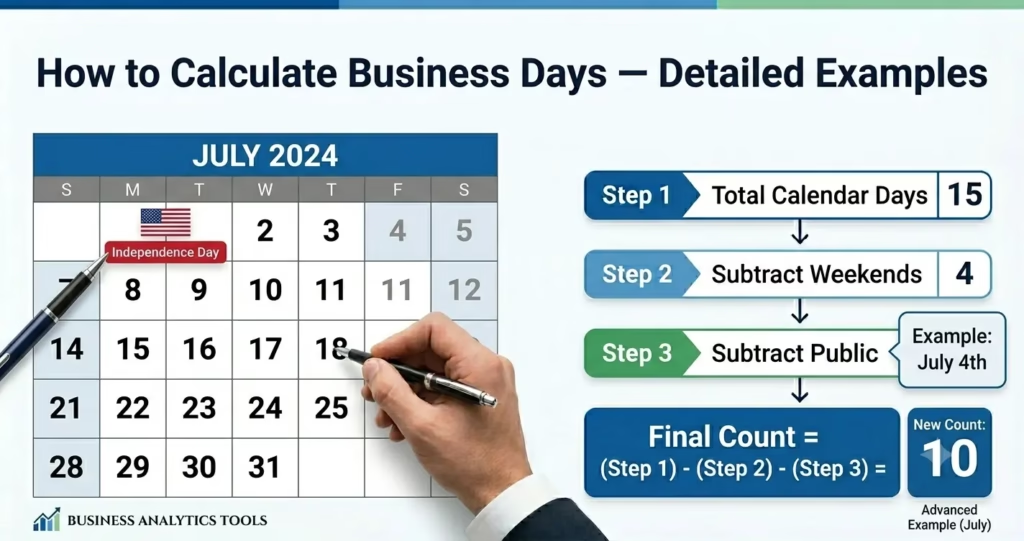
Example One: Simple Range Within One Month
Start date: March 2, 2026 — Monday. End date: March 20, 2026 — Friday.
Step one: The total number of calendar days from March 2 to March 20, inclusive, is 19 days.
Step two: Weekend days within the range. Week one covers March 2 to March 8. The weekend days are March 7 Saturday and March 8 Sunday, giving 2 weekend days. Week two covers March 9 to March 15. The weekend days are March 14, Saturday, and March 15, Sunday, giving 2 more weekend days. The partial week from March 16 to March 20 contains no weekend days because March 20 is a Friday. Total weekend days: 4.
Step three: 19 total calendar days minus 4 weekend days equals 15 business days.
Step four: No US federal holidays fall in this range. Result: 15 business days.
Example Two: Range Crossing a Month Boundary
Start date: April 20, 2026 — Monday. End date: May 10, 2026 — Sunday.
Step one: April has 30 days. From April 20 to April 30 is 11 days. May 1 to May 10 is 10 days. Total: 21 calendar days.
Step two: Saturday, April 25, and Sunday, April 26. May 2 Saturday and May 3 Sunday. May 9 Saturday and May 10 Sunday. Total weekend days: 6.
Step three: 21 total calendar days minus 6 weekend days equals 15 business days.
Step four: No major US federal holidays fall in this range. Result: 15 business days.
Example Three: Range Crossing a Holiday
Start date: January 12, 2026 — Monday. End date: January 30, 2026 — Friday.
Step one: Total calendar days from January 12 to January 30 inclusive equals 19 days.
Step two: January 17 Saturday and January 18 Sunday. January 24 Saturday and January 25 Sunday. Total weekend days: 4.
Step three: 19 total calendar days minus 4 weekend days equals 15 preliminary business days.
Step four: Martin Luther King Jr. Day falls on Monday, January 19, 2026. This is a weekday holiday within the range. Subtract 1. Result: 14 business days.
How to Add Business Days to a Date — Step by Step
Finding the date that falls a specific number of business days from a starting point requires a different approach from counting between two known dates. Here is the complete method.

Step One: Note Your Starting Date and Day of Week
Write down your starting date and confirm what day of the week it falls on. This is important because the day of the week determines how many days you can count before hitting the first weekend.
Step Two: Count Forward One Business Day at a Time
Count forward from the starting date, skipping every Saturday and Sunday as you go. Keep a running tally of business days counted.
For short periods of 5 to 10 business days, counting one by one through the calendar is the most reliable manual method. For longer periods, use the batch method described below.
Step Three: Use the Batch Method for Longer Periods
For periods of 20 or more business days, the batch method is faster than counting one day at a time.
Divide your target business day count by 5. The whole number result tells you how many complete work weeks to count forward. The remainder tells you how many additional individual business days to count after those complete weeks.
For example, to add 30 business days to a Monday starting date: 30 divided by 5 equals 6 complete work weeks. Counting forward 6 complete weeks, or 42 calendar days, from the starting Monday gives you a new Monday. If no holidays fall within the range, this Monday is your result. If the target count had a remainder, count that many additional business days forward from there.
Step Four: Adjust for Any Holidays
After reaching your preliminary result, check whether any weekday holidays fall within the date range you just counted through. For each holiday found, add one more business day to your total by counting forward one additional weekday from your current result date.
Step Five: Confirm the Resulting Day of the Week
Check that your result date falls on a weekday. If it falls on a Saturday or Sunday, move forward to the next Monday. This situation can occur when the calculation ends exactly on a weekend day due to a holiday adjustment.
How to Calculate Business Days in Excel
For users who prefer spreadsheet-based calculations, Excel provides a built-in function that performs business day calculations automatically.
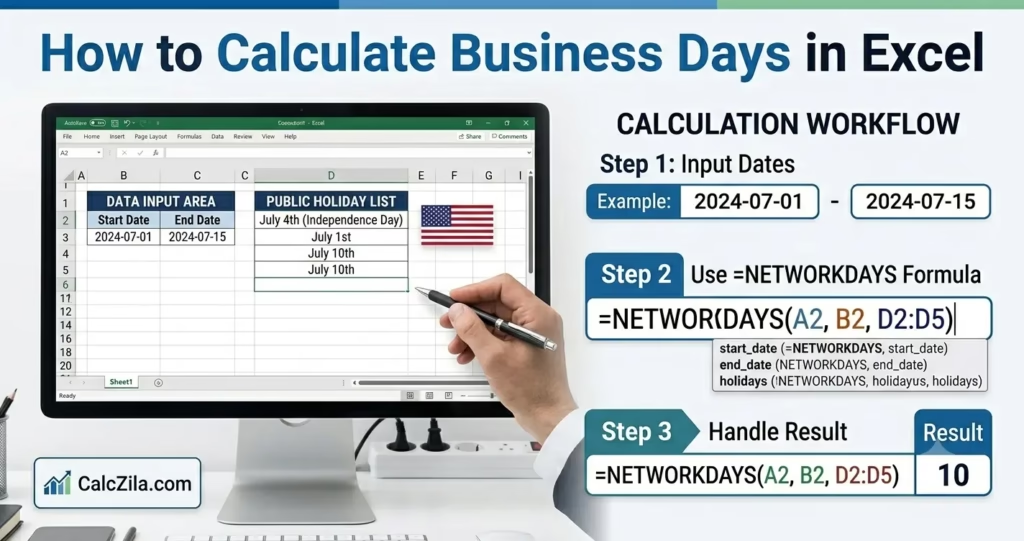
NETWORKDAYS Function
The NETWORKDAYS function calculates the number of working days between two dates. The syntax is NETWORKDAYS of start date, end date, and an optional list of holiday dates. The function automatically excludes Saturdays and Sundays and also excludes any dates you specify in the holidays argument.
For example, entering NETWORKDAYS with a start date of March 2 and an end date of March 20 returns 15, matching the manual calculation in Example One above.
WORKDAY Function
The WORKDAY function finds the date that falls a specific number of business days from a starting date. The syntax is WORKDAY of start date, number of days, and an optional list of holidays. The function counts forward or backward by the specified number of working days and returns the resulting date.
Both functions handle the weekend exclusion and holiday subtraction automatically, making them reliable for professional spreadsheet-based deadline tracking.
For a faster and more accessible alternative to spreadsheet formulas, our free business day calculator performs the same calculation instantly without any formula knowledge required.
Common Mistakes When Calculating Business Days Manually
Even experienced professionals make errors when counting business days manually. Here are the most common mistakes and how to avoid them.

Counting the Start Date as Day One
Whether to count the start date as day one or start counting from the day after depends on the specific context. For most deadline calculations, the trigger date is day zero, and counting begins from the following day. For project duration calculations, the first day of work is often counted as day one. Always clarify which convention applies before starting the count.
Forgetting Partial Weekends at Range Edges
The most common manual counting error is correctly handling the weekends at the very start and end of the date range. When the start date falls mid-week, only some weekend days from that partial first week fall within the range. The same applies at the end. Counting each partial weekend day individually rather than assuming a full weekend at each edge prevents this error.
Missing a Holiday
Long date ranges can contain multiple holidays that are easy to overlook. Creating a list of all applicable holidays for the year and checking each one against the date range prevents any from being missed.
Assuming All Months Have 30 Days
Using 30 days for every month in manual calendar day counting introduces errors when the range crosses months with 31 days or February with 28 or 29 days. Always use the actual day count for each specific month in the range.
Frequently Asked Questions
Use our free business day calculator to get the exact answer for any business day calculation instantly, without any manual counting required.